GIF to PDF: Convert GIF Files to PDF Online

GIFs are fun to share, but they are awkward to print, archive or send as a formal document. Turning a GIF into a PDF keeps the image in a neat, portable file that anyone can open. This guide explains the best way to convert a GIF to PDF online, and what happens to animation in the process.
Why Convert GIF to PDF?
A PDF preserves the layout, works on every device and prints cleanly. That makes it ideal for saving a GIF as evidence, including it in a report, or sharing it with someone who cannot open image files easily. A PDF also keeps the file in one place, rather than relying on a messaging app or a social media link.
How to Convert GIF to PDF Online
Follow these steps:
- Open the free GIF to PDF converter.
- Upload the GIF file you want to convert.
- Choose your page size and layout if the tool offers options.
- Click convert and wait a few seconds.
- Download the finished PDF and open it to check the result.
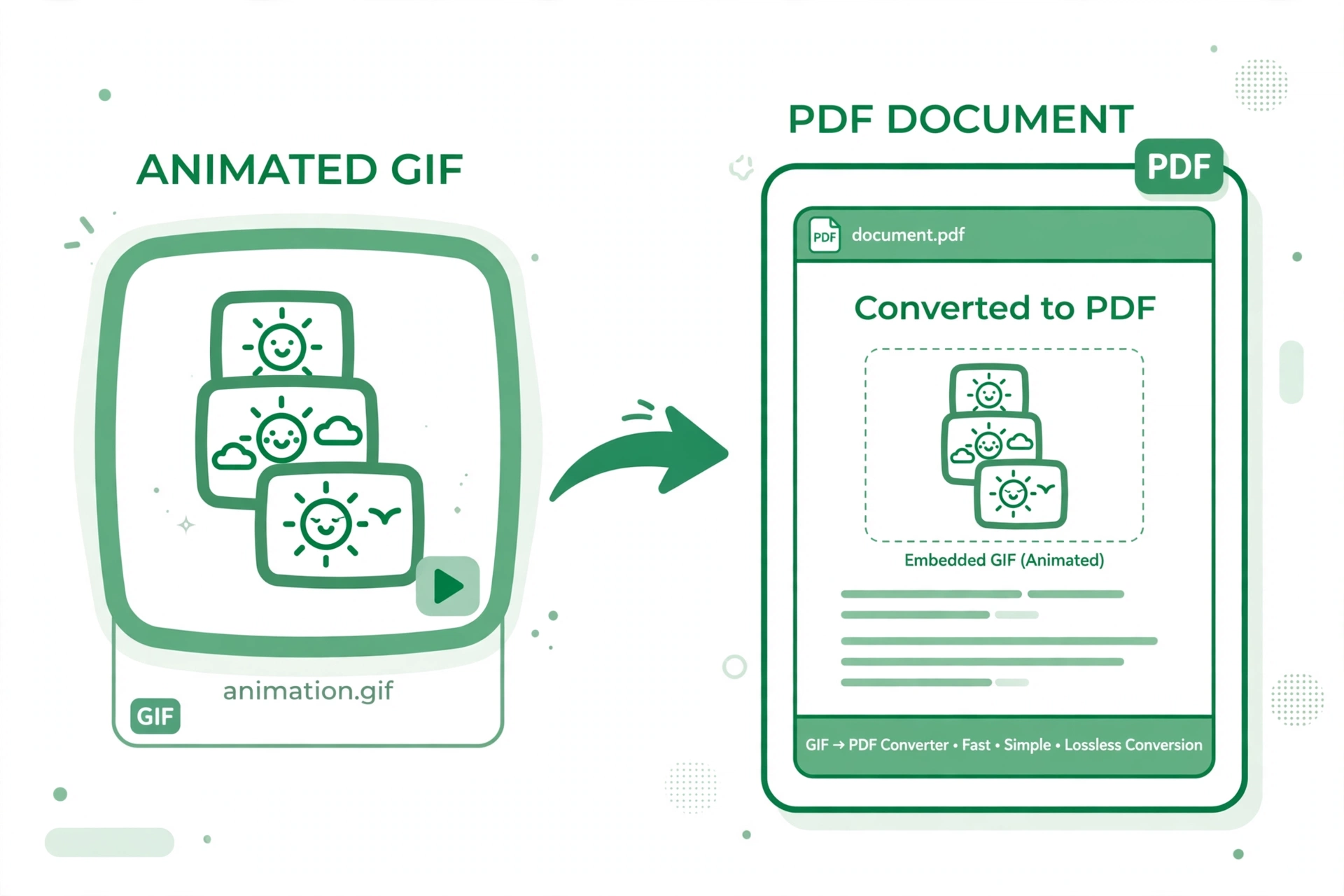
Most converters place the first frame of the GIF on the PDF page. Animation does not usually carry over, so choose a GIF whose opening frame shows the image you want to keep.
Tips for a Good PDF
- Use a high-quality GIF with a clear main frame.
- Check the page size before converting, especially for printing.
- Convert each GIF separately if you need one PDF per image.
- Keep the original GIF if you still need the animation.
Frequently Asked Questions
Is converting GIF to PDF free? Yes, the online converter is free to use, with no sign-up required.
Will the animation play in the PDF? No, a PDF normally shows a still image, usually the first frame of the GIF.
Can I convert several GIFs at once? You can convert them one by one, or combine the results into a single document afterwards.
Does the PDF work on any device? Yes, PDFs open on Windows, Mac, Android, iOS and in most browsers.
Ready to save your GIF as a tidy document? Try the free GIF to PDF converter now and create your PDF in seconds.